

With the Fiks platform, the municipal sector can communicate across administrative levels and national specialist sectors—contributing key building blocks to the national ecosystem for digital collaboration. The Fiks platform is a central, shared service platform for Norwegian municipalities and county councils. It consists of common components and digital services, providing suppliers with a framework to follow as a standard for the municipal sector. This supports their ability to scale and reuse solutions across municipalities.
KS Fiks paves the way for integrated user management, a capability that Identum eADM utilized. When new users are added, or existing users are modified or deleted in eADM, the integration automatically updates KS Fiks. The integration also enables the use of groups for access management. It is possible to grant one or more groups access to a service, and subsequently add or remove individuals from this group in eADMautomatically based on rules or manually, for example, by managers.
Another key benefit is that when a person leaves the organization or no longer needs access for professional reasons, eADM automatically eADM the user’s access rights. This ensures that permissions are always up to date and that security is maintained.
Read more about the KS Fiks platform here: https://ksdigital.no/tjenestene/fiks-plattformen/
eADM Fix integration setup
Before Identum can begin the technical configuration on their end, you must provide the following:
Step 1: Grant System Access and Generate an API Token
To grant eADM to create users, you must generate an API token from the KS Fiks administration portal.
-
Log in to the KS Fiks configuration portal (https://forvaltning.fiks.ks.no) using Bank-ID.
-
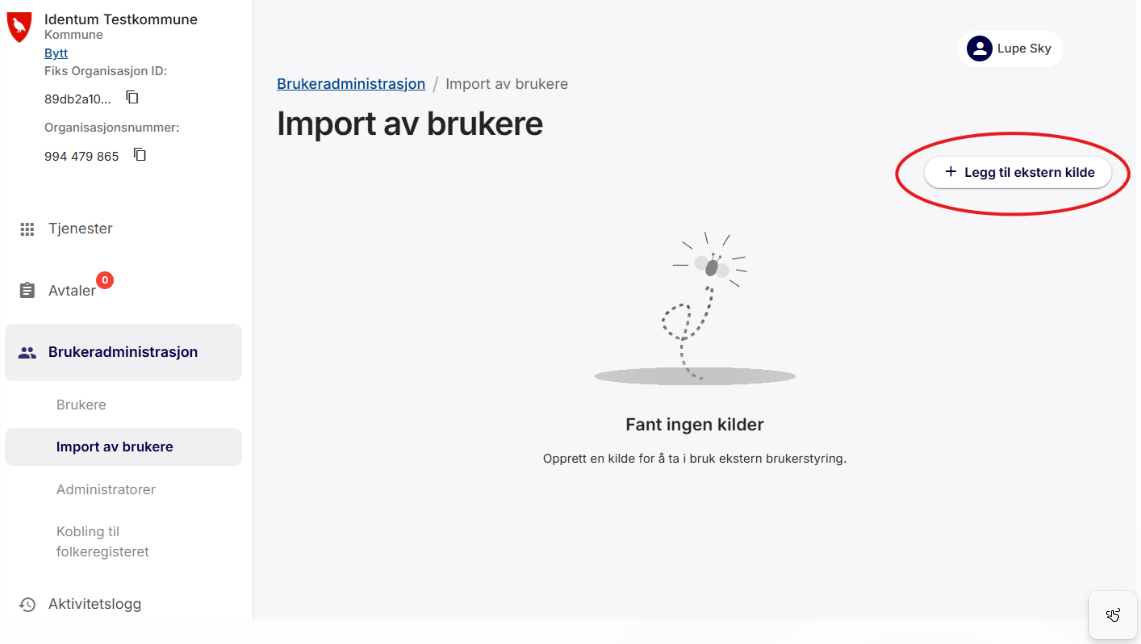
Go to User Management → Import Users .
-
Click + Add external source.
-
Select Entra ID / Azure AD, enter the Tenant ID (see the note below the image), and copy the token before exiting.
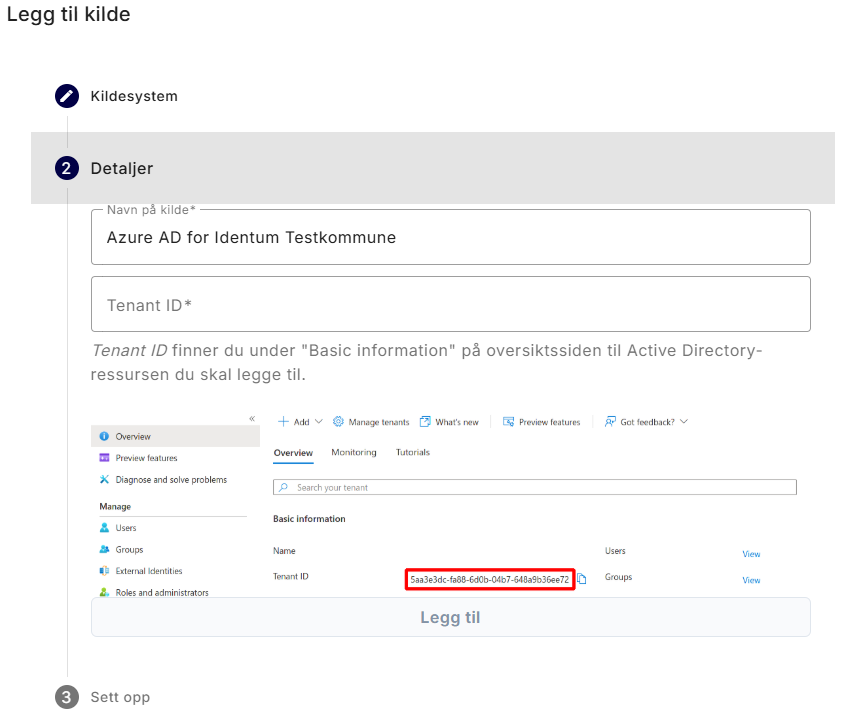
Note: Although you select Entra, this is not an integration with Entra for this purpose. Enter any value as the tenant ID; the choice does not affect the integration's functionality.
-
After creating the source, the system will display a token. Send the token to your Identum contact via a secure password-sharing service.
Step 2: Send Identum the necessary information
-
Token from step 1
-
Do you have existing users in KS Fiks? If so, we need to know which field in KS Fiks we should use to merge with existing users:
-
If they are synced from Entra ID, please let us know and verify that the UPN in Entra ID is mapped to the UserName in KS Fiks: https://ksdigital.no/tjenestene/ks-kunnskap/slik-flytter-vi-til-ks-kunnskap/teknisk-informasjon/sentralisert-brukerstyring/#endre-2
-
If they are created manually, please let us know if the users have a Social Security number in their KS Fiks account or if you have entered the correct UPN in the username field.
-
-
Which login method do you want to use: Entra ID, ID-porten, or both? The default is both.
Once we have completed the setup on our end, we will contact you to schedule an activation date.
Please note that if you have an existing integration with Entra ID, it must be deactivated before the Identum KS Fiks integration is activated.
The following steps are optional and are only necessary if you want eADM assign roles in Fiks Register
Step 3: Coordinate the activation of external user management in Fix Register
After you generate the access key, you may see a warning about enabling external user management.
Warning: Enabling "external user management" will remove all existing permissions for current roles. To avoid service disruption, do not enable this feature immediately. You must coordinate carefully with your Identum consultant to plan the exact timing for enabling it. We recommend that you first download the overview of existing role permissions to use as a reference.
Step 4: Define Roles and Groups (Optional - only for Fiks Register)
This step is only required for integration with Fiks Register.
You must determine which roles and groups in KS Fiks Register will be managed by Identum. The groups a user belongs to will define the roles they are assigned.
-
For existing groups: If you want eADM manage membership for existing groups, you must provide us with the group names and the membership rules (e.g., specific individuals or rules based on department or position).
For new groups: We must create a group in eADM the same name and a corresponding rule set to correctly link to the group in KS Fiks Register.
You can either create the group in eADM or have Identum do it for you.
Step 5: Create Groups in eAdm Optional - only for Fiks Register)
If you choose to create the groups in eAdm , use the group wizard and follow these guidelines:
-
Description: Enter a logical, human-readable name in the "Description" field. This will be the group's display name in both eAdm KS Fiks.
-
SourceID and Name: Use a naming convention that clearly identifies the group's purpose and distinguishes it from standard AD groups. We recommend using a consistent prefix (e.g.,
Fix-Access-Population Register-Health_Vaccination). -
Parent: You must set the "Parent" field to
ksfiks. This is used by the synchronization rules to identify which groups to export.
Step 6: Final Verification and Activation (Optional - only for Fiks Register)
Once the roles have been mapped and the groups have been configured in eAdm, notify your Identum consultant.
Before activating the integration, Identum will send you a list of the users and groups that are ready to be exported. This allows you to verify that the correct data will be transferred before the final activation.