When a user in eADM a valid user anchor, changes and group memberships from eADM not be synchronized with Active Directory (AD). You can identify this issue when the user's anchor value is either missing or is not a valid objectGUID.
How to Identify an Invalid User Anchor
You can check the "Anchor" column in the user list.
-
Invalid Anchor: The value in the "Anchor" column is missing or matches the user's internal eADM .
-
Id:
278540 -
Anchor:
278540
-
-
Valid Anchor: The value in the "Anchor" column is a valid Globally Unique Identifier (GUID).
-
Id:
171381 -
Anchor:
9366034e-c04b-4523-8943-ef49d38ce994
-
Troubleshooting Checklist
Follow these steps to troubleshoot and resolve issues for users with an invalid user anchor.
1. Check for duplicate users in Active Directory.
First, verify that there is no duplicate account for the user in Active Directory
2. Verify User Attributes.
Make sure the user has the correct employee number and/or national ID number in the employeeID and employee number attributes in Active Directory. These are the unique identifiers that eADM to match users with existing Active Directory accounts.
3. Check for AD Object Protection
The AD user object must not be protected against accidental deletion. This setting must be disabled for eADM merge, update, and move users, groups, and OUs in AD.
You can find this setting in the user's Properties -> Object tab in "Active Directory Users and Computers."
Note: To remove this protection flag from multiple users at once, you can use the following PowerShell script.
PowerShell
Get-ADObject -Filter * -SearchBase 'OU=TestOU, DC=Vision, DC=local' | `
ForEach-Object -Process {
    Set-ADObject -Identity $_ -ProtectedFromAccidentalDeletion $false
}
4. Confirm the Organizational Unit (OU) Path
Verify that the user is located in an OU that is covered by the MergePath in the c:\eadm\eadm.client.exe.config file.
XML
<add key="MergePath_N0961381630" value="OU=Groups|OU=Users"/>
Note: The path should only contain OUs. You do not need to include the DC (Domain Component) part of the path, as this is defined in the Domain setting.
Resolving the Issue
-
After you have verified all the items on the checklist, run the Restore User Anchor function in eADM the specific user.
-
Next, either run a manual synchronization or wait for the next scheduled sync to run.
-
Check the user's anchor value in eADM .
Warning: If the anchor is still not assigned correctly after following these steps, please send the log file from c:\eadm\logfiles Contact Identum support for further assistance.
Bulk Operations for Invalid Anchors
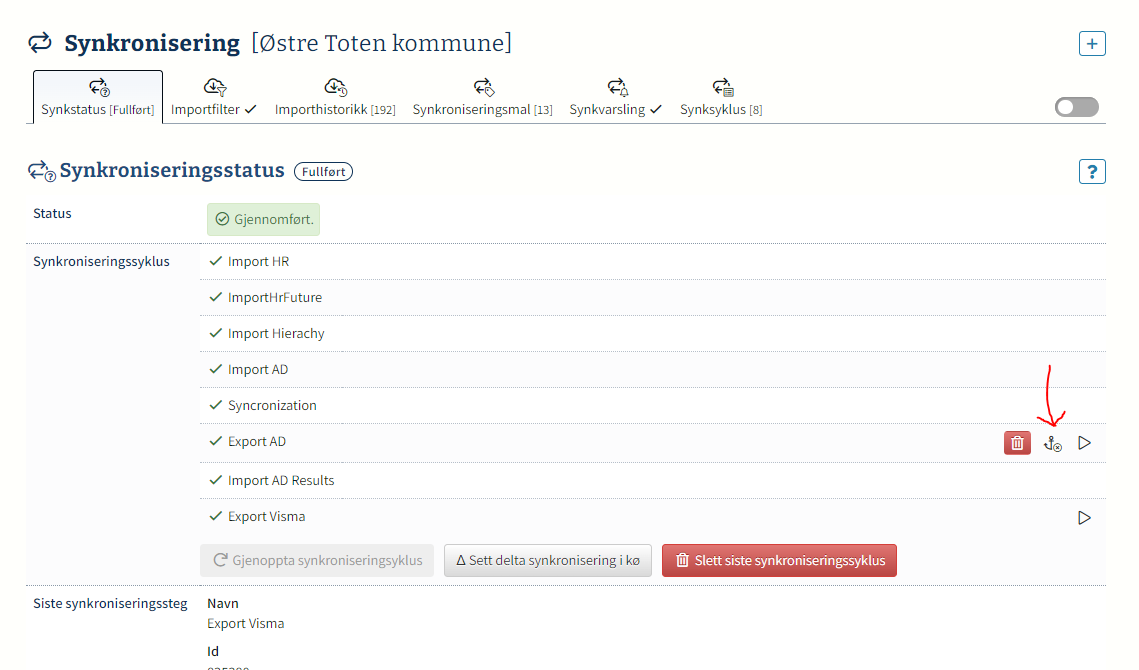
You can find all users who are missing a valid user anchor by navigating to the Synchronization Status page and clicking the "Objects with invalid user anchor" button (the icon is marked with a red arrow in the source document).
From this view, you can try to restore all invalid anchors at once